Gem grid into a stats card
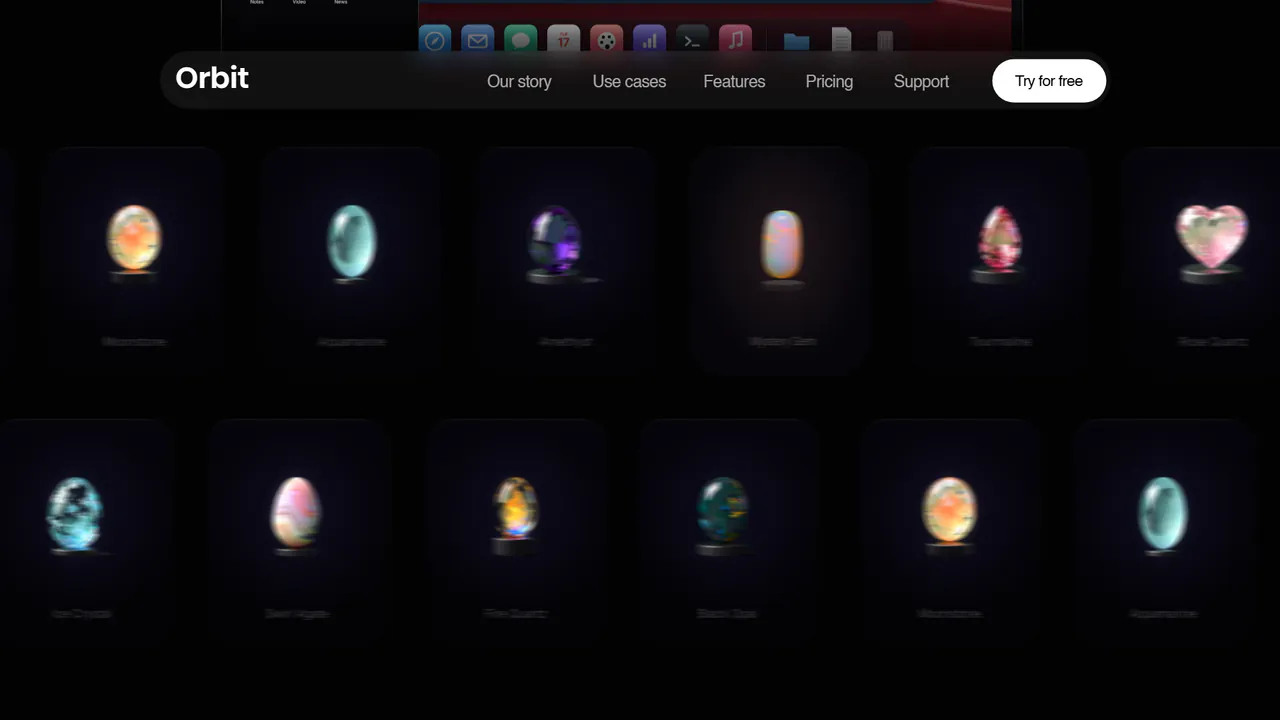
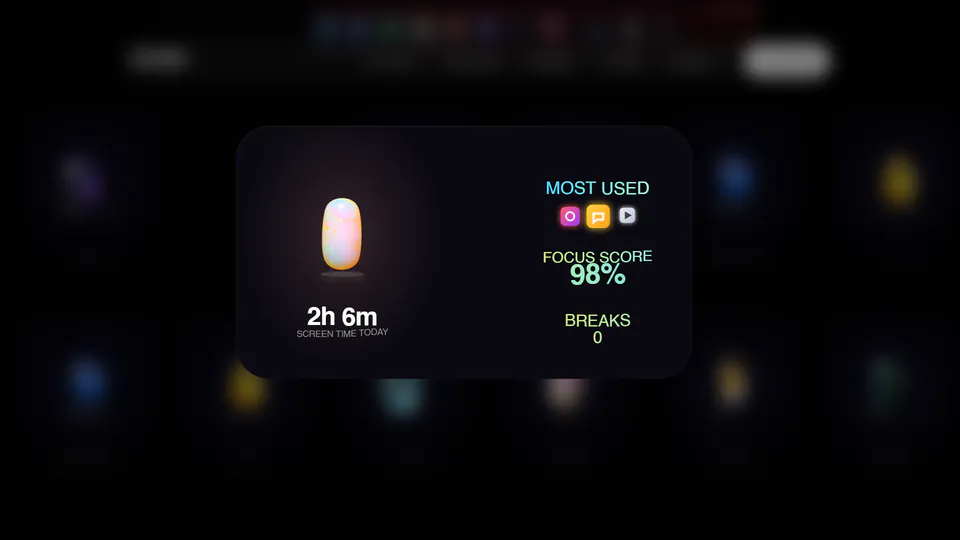
A dark website scrolls to rows of glowing gem cards, a cursor picks one, and it opens into a stats card while the page blurs behind.
Interfaces6 s16:9, 9:16, 1:1Build with Remotion, HyperFrames or HTML
Your prompt
Your prompt is ready
Leave your email to see it and copy it. Free during launch.
Paste it into Claude (Claude Code works best). It builds the scene and shows you 3 still frames before rendering. How to use it
About this animation
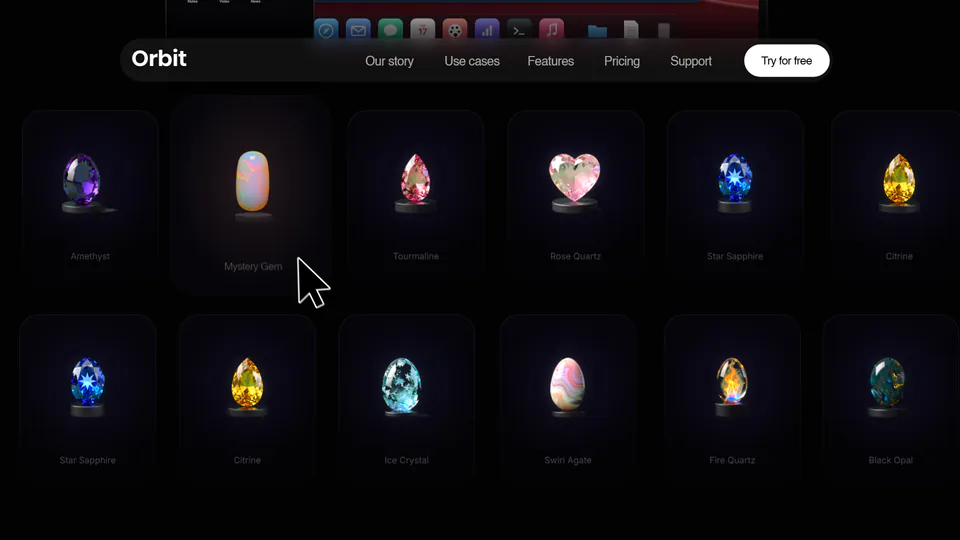
Product videos often need to show a collection, then zoom on one item and what it means. This scene does it like a polished website tour. A dark website scrolls past a laptop picture under a frosted menu bar, then two rows of cards rise one after another, each with a glowing gemstone on a small stand, then the rows glide in opposite directions. An arrow cursor swoops in on a curve and clicks one card: the card grows, the page behind it blurs and darkens, and the card opens into a wide stats card with a big number, three app icons, a score and a second value, every letter bouncing into place.
It comes from a professional After Effects project, rewritten as readable code keyframe by keyframe: the same page scroll, the same staggered rises, the same cursor path, the same spring when the card is pressed and the same letter bounce. The website screenshots of the original are replaced: the cards are drawn in code, the gemstones and the laptop screen were made for this scene, and the app icons are neutral. The original sound design comes with it: three stereo sweeps as the rows slide, the card opens and the scene closes.
Scene timeline
Second by second, with the example content. Timing adapts to your text.
- 0.0 s
Cards rise
Under the menu bar, the top row of gem cards rises in one card every two frames, then the bottom row, while the page finishes scrolling.
- 0.9 s
Rows glide
The two rows slide in opposite directions for 2.5 seconds, revealing more cards; the chosen card rides along in the top row.
- 2.0 s
Cursor
An arrow cursor swoops in from the right on a curve and lands on the chosen card, which grows to 140 percent.
- 3.2 s
Stats card
The page blurs and darkens, the card is pressed and opens into a wide stats card: the big number, its label, the apps, the score and the second value bounce in.
- 5.2 s
Closing circle
A gray circle closes over the scene; the shot ends at 5.83 seconds, as in the original edit.
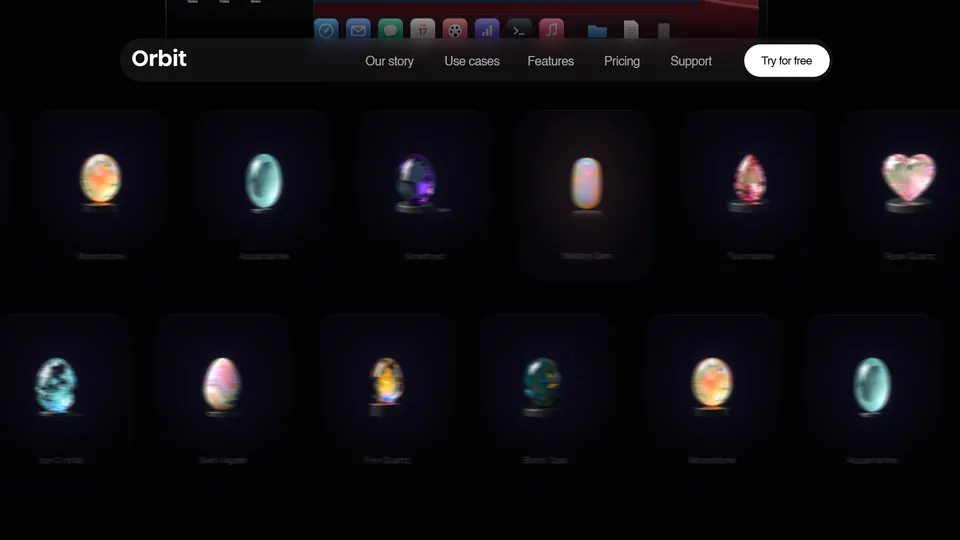
Frames from the scene
Entrance, middle and final hold, with the example content.
What you can customize
- Numbers and labels
- The big number, its label, the apps label, the score and the second value are all yours; long labels shrink inside the card.
- Brand and card name
- Your brand replaces the logo in the menu bar, and the chosen card carries any name.
- Cards and icons
- The gem images live in the img folder of the code: ask Claude to swap them for your own pictures, and the app icons for your own.
- Sound, color and format
- Turn Sound on to hear the sweeps; the MP4 includes them. The Color menu shifts every hue; vertical and square keep the same sizes, centered, and the menu bar narrows like a real website.
Best for
Collections and catalogs
Show a library of items, templates or rewards, then zoom on one and its numbers.
Dashboard reveals
Turn a click into a stat card: screen time, revenue, streaks, scores, anything with a big number.
App and website tours
A believable cursor and a blurred page make a product walkthrough feel real without a screen recording.
How to use it
Customize
Change the text, the color, the format and the tool in the panel above. The live preview follows as you type.
Unlock
Leave your email once to reveal the full prompt and copy it. It is free during launch.
Paste into Claude Code
Start Claude Code in a project folder (npx create-video for Remotion, npx hyperframes init for HyperFrames, any empty folder for plain HTML) and paste the prompt. Claude writes the scene with your content.
Check the 3 frames
Before any render, Claude shows you three still frames: the end of the entrance, the middle of the hold and the moment just before the exit. Ask for fixes until they match the preview.
Render
Approve and let Claude render the video: an MP4 to upload, or a transparent WebM or ProRes 4444 file for your editor. A plain HTML scene is captured frame by frame with a headless browser and FFmpeg.
Pro tips
- Keep the big number short, like 2h 6m or 98%: it bounces in at full size.
- Say the number in your voice-over at about 4.1 seconds, when the stats card opens.
- Replace the gems with your own products to show a catalog, then open the best seller.
Questions
Is it the original After Effects animation?
Yes. The scroll, the rows, the cursor path, the card press and opening, the blur and the closing circle use the keyframes and curves of the original project; only the website screenshots and logos were replaced.
Where do the gemstones come from?
They were generated for this scene with a local image model, then cut out on a transparent background; they are served with the code and can be replaced by any image.
Does the video include the sound?
Yes. The three stereo sweeps of the original edit are mixed at their exact instants into the MP4 as an AAC audio track.
Which fonts does it use?
Helvetica for the menu and the stats, as in the original project, Inter for the card names and Poppins SemiBold for your brand; all are served with the code.
More animations
Browse the library